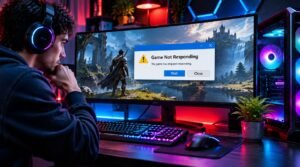
How to Fix Low FPS in PC Games: 15 Ways to Improve Gaming Performance

Low FPS can turn an otherwise enjoyable PC gaming experience into a frustrating one. Whether you’re exploring a massive open world, competing in an online shooter, or playing a demanding simulation game, inconsistent frame rates can make movement feel sluggish and controls less responsive.
Fortunately, you don’t always need an expensive graphics card or an entirely new computer to improve gaming performance.
Many FPS problems come from outdated drivers, demanding graphics settings, background applications, overheating, or incorrect Windows configurations.
To fix low FPS in games, start by updating your graphics drivers, closing unnecessary background applications, lowering demanding graphics settings, and checking CPU and GPU temperatures. These steps can improve performance without requiring new hardware.
This guide explains 15 practical ways to increase FPS in PC games, identify performance bottlenecks, and achieve smoother gameplay.
What Is FPS in Gaming?
FPS stands for frames per second. It measures how many individual images your computer renders every second while running a game.
Higher frame rates generally produce smoother animation and can improve responsiveness, especially when your monitor supports higher refresh rates.
For example:
| Frame Rate | Typical Gaming Experience |
|---|---|
| 30 FPS | Playable in many slower-paced games |
| 60 FPS | Smooth experience for most players |
| 90 FPS | More fluid movement on compatible displays |
| 120 FPS | Highly responsive gameplay |
| 144 FPS | Popular target for competitive gaming |
| 240 FPS | Very smooth motion with suitable hardware |
However, FPS isn’t the only factor affecting gameplay.
Consistent frame delivery, also called frame pacing, is equally important. A game running at 90 FPS with frequent stutters may feel worse than one maintaining a stable 60 FPS.
If you’re deciding whether a PC or console better suits your performance expectations, read our guide to choosing the right gaming platform.
Why Is My FPS So Low?
Low FPS occurs when your computer cannot render game frames quickly enough to maintain your desired performance.
Common causes include:
- Outdated or problematic graphics drivers
- Graphics settings exceeding hardware capabilities
- CPU or GPU overheating
- Insufficient RAM or video memory
- Background applications consuming resources
- Incorrect power settings
- Games running on integrated graphics
- Poor game optimization
- Hardware limitations
Some games are naturally more demanding than others. Large open worlds, advanced lighting, detailed environments, and complex simulations can place substantial pressure on your hardware.
Understanding the cause is essential because no single optimization works for every computer.
1. Update Your Graphics Drivers
Outdated graphics drivers can cause compatibility problems, visual glitches, crashes, and poor performance.
Graphics card manufacturers regularly release driver updates that may include optimizations for newly released games.
How to Update GPU Drivers
First, identify your graphics card.
On Windows:
- Right-click the Start button.
- Select Device Manager.
- Expand Display adapters.
- Check your GPU model.
Next, download the appropriate driver from your GPU manufacturer’s official website or application.
NVIDIA users can use the NVIDIA App, while AMD users can use AMD Software: Adrenalin Edition.
Intel graphics users should check Intel’s official driver tools or their computer manufacturer’s support page.
Restart your computer after installation.
Important: A newer driver doesn’t guarantee higher FPS in every game. If performance drops immediately after an update, investigate whether the driver introduced a compatibility issue.
2. Lower the Most Demanding Graphics Settings
One of the fastest ways to increase FPS is to reduce graphics settings that place heavy demands on your GPU.
You don’t necessarily need to switch everything to Low.
Instead, focus on settings with the greatest performance impact.
Graphics Settings Worth Adjusting
| Graphics Setting | Recommended Starting Point |
|---|---|
| Ray Tracing | Off |
| Shadows | Medium |
| Volumetric Effects | Low or Medium |
| Reflections | Medium |
| Ambient Occlusion | Medium |
| Motion Blur | Personal preference |
| Texture Quality | Based on available VRAM |
| Anti-Aliasing | Moderate setting |
| Render Resolution | Native or slightly reduced |
Ray tracing can be especially demanding because it simulates advanced lighting behavior.
Reducing shadows, reflections, and volumetric effects may also provide meaningful performance improvements.
Texture quality is different: higher settings primarily increase video memory usage and may have a smaller FPS impact until available VRAM becomes insufficient.
Change one setting at a time and measure the results.
3. Enable Windows Game Mode
Windows includes a feature called Game Mode that helps prioritize gaming-related workloads.
Although Game Mode won’t magically double your FPS, it may reduce interference from certain background activities.
How to Enable Game Mode
- Open Windows Settings.
- Select Gaming.
- Click Game Mode.
- Turn Game Mode on.
Game Mode is normally enabled by default on modern Windows installations, but checking the setting takes only a few seconds.
For additional recommendations, Microsoft’s official Windows gaming performance guide explains several gaming-focused settings.
Test performance before and after making changes.
4. Close Unnecessary Background Applications
Background applications can consume CPU processing power, RAM, storage bandwidth, and sometimes GPU resources.
This becomes particularly noticeable on systems with limited memory or older processors.
Applications that may consume resources include:
- Web browsers with numerous tabs
- Video editing software
- File synchronization services
- Game launchers downloading updates
- Recording and streaming applications
- Unnecessary desktop utilities
How to Identify Resource-Heavy Applications
Press Ctrl + Shift + Esc to open Task Manager.
Select Processes and examine CPU, Memory, Disk, and GPU usage.
Close applications you recognize and don’t currently need.
Avoid ending unfamiliar Windows system processes.
Disabling unnecessary startup applications can also reduce resource consumption after restarting your PC.
5. Check CPU and GPU Temperatures
Overheating is a common cause of FPS drops during extended gaming sessions.
Modern processors and graphics cards can reduce their operating speeds when temperatures approach hardware-specific limits.
This behavior is known as thermal throttling.
Signs of Thermal Throttling
You may notice:
- FPS starts high but gradually decreases.
- Fans become unusually loud.
- Performance worsens after extended gameplay.
- CPU or GPU clock speeds decrease under sustained load.
- The computer becomes excessively hot.
Use a trusted hardware-monitoring application to observe temperatures and clock speeds.
Temperature limits vary by hardware, so consult the manufacturer’s specifications rather than assuming one universal safe threshold.
How to Improve Cooling
Clean dust from fans and vents, improve case airflow, and make sure cooling components operate correctly.
Laptop users should avoid blocking ventilation openings.
If the computer is older, professional inspection of the cooling system may be appropriate.
6. Use the Correct Windows Power Mode
Power-saving settings can limit CPU or GPU performance.
This is particularly relevant for gaming laptops.
Change Power Settings
On Windows 11:
- Open Settings.
- Select System.
- Open Power & battery.
- Find Power mode.
- Choose Best performance when available.
On gaming laptops, connect the original or an appropriately rated power adapter before testing.
Some laptops also include manufacturer-specific performance profiles.
Higher performance modes may increase electricity consumption, fan noise, and heat.
Use them when appropriate rather than assuming maximum power is always necessary.
7. Make Sure Games Use Your Dedicated GPU
Some gaming laptops and desktop computers have both integrated and dedicated graphics processors.
If a demanding game runs on integrated graphics instead of the more powerful dedicated GPU, performance can suffer.
Select the High-Performance GPU
- Open Windows Settings.
- Go to System > Display > Graphics.
- Find or add your game.
- Select Options.
- Choose High performance if multiple GPU options are available.
- Save your changes.
Restart the game afterward.
On desktop PCs, also verify that your monitor is connected to the intended graphics card rather than an inappropriate motherboard display output.
Not every system offers multiple GPU choices.
8. Enable DLSS, FSR, or Other Supported Upscaling
Modern games sometimes include technologies that improve performance by rendering at a lower internal resolution and reconstructing the final image.
Common examples include NVIDIA DLSS, AMD FidelityFX Super Resolution, and Intel XeSS.
These technologies can help improve frame rates in GPU-limited situations.
Which Upscaling Setting Should You Use?
Start with Quality mode when available.
If performance remains below your target, test Balanced mode.
Performance mode can provide additional headroom but may reduce image clarity, depending on the game, display resolution, and technology.
AMD provides details about supported features through its official FidelityFX Super Resolution documentation.
Remember that frame generation and resolution upscaling are different features.
Frame generation can increase displayed frame counts, but it does not automatically improve game simulation responsiveness or eliminate input latency.
For competitive games, evaluate responsiveness as well as the FPS counter.
9. Reduce Resolution or Render Scale
Higher resolutions require the GPU to process more pixels.
For example, 1440p and 4K gaming generally demand more graphics processing than 1080p when other settings remain comparable.
If your GPU struggles, lowering render resolution may improve performance.
Recommended Approach
Keep your monitor at its native display resolution when possible.
Then adjust the game’s internal render scale or use a supported upscaling technology.
Try a small reduction first and compare visual clarity with the performance improvement.
Lowering resolution is most effective when the GPU is the primary bottleneck.
If your game is limited by CPU performance, reducing resolution may have little effect.
10. Disable Unnecessary Overlays and Recording Features
Game overlays provide useful features such as performance monitoring, chat notifications, screenshots, and recording.
However, some overlays can create conflicts or additional processing overhead.
Common examples include:
- Game launcher overlays
- GPU recording overlays
- Communication application overlays
- Third-party performance monitoring tools
Disable nonessential overlays temporarily and test the game again.
If performance improves, enable features individually to identify the cause.
Don’t assume every overlay reduces FPS significantly. Many have minimal impact on properly configured systems.
The goal is to isolate potential conflicts.
11. Check RAM and Video Memory Usage
Insufficient system memory can contribute to stuttering, slow asset loading, and inconsistent frame times.
Modern games may require substantial RAM, particularly when other applications are running.
Video memory, or VRAM, stores graphics-related data such as textures and rendering resources.
When a game exceeds available VRAM, performance may become inconsistent.
What Should You Check?
Open Task Manager and review memory consumption while gaming.
Also monitor GPU memory usage if your tools support it.
If system RAM is nearly exhausted, close unnecessary applications.
If VRAM is the problem, lower texture quality, resolution, or other memory-intensive settings.
Adding RAM can help systems that regularly run out of memory, but upgrading won’t necessarily improve performance when sufficient memory is already available.
12. Install Demanding Games on an SSD
Solid-state drives provide faster data access than traditional mechanical hard drives.
Moving a game from an HDD to an SSD can improve loading times and asset streaming in supported games.
It may also reduce certain loading-related stutters.
However, an SSD does not guarantee a substantial increase in average FPS.
When an SSD Upgrade Helps
Consider SSD storage if:
- Games frequently pause while loading new areas.
- Large environments stream assets slowly.
- Your system still relies on a mechanical hard drive.
- A game explicitly recommends or requires SSD storage.
Keep enough free storage space for game updates and normal system operation.
Avoid unnecessary disk optimization utilities that promise unrealistic gaming performance improvements.
13. Verify Game Files and Install Updates
Sometimes poor performance comes from damaged files, incomplete updates, or game-specific bugs.
Game developers may release patches addressing performance issues.
Verify Files on Steam
- Open Steam.
- Navigate to your Library.
- Right-click the affected game.
- Select Properties.
- Open Installed Files.
- Choose Verify integrity of game files.
Other launchers may provide similar repair or verification options.
Check the game’s official patch notes to see whether known performance issues have been addressed.
Performance problems can also originate from the game itself rather than your computer.
Understanding why video games take so long to develop provides useful context about testing, optimization, and technical complexity.
14. Identify CPU and GPU Bottlenecks
A bottleneck occurs when one component limits overall performance.
For example, a powerful GPU may remain underutilized because the CPU cannot prepare game frames quickly enough.
Alternatively, a demanding game may fully occupy the GPU while the CPU has additional processing capacity.
CPU vs GPU Bottleneck Symptoms
| Symptom | Possible Explanation |
|---|---|
| GPU near full utilization | Potential GPU limitation |
| One or more CPU cores heavily loaded | Potential CPU limitation |
| High RAM usage with stuttering | Memory pressure |
| FPS decreases as temperatures rise | Possible thermal throttling |
| Low FPS despite reduced resolution | Possible CPU or other limitation |
These indicators are clues, not definitive diagnoses.
Overall CPU usage can appear moderate even when an individual game thread is limiting performance.
Compare utilization, clock speeds, temperatures, and frame times across several gameplay scenarios.
This helps identify the actual problem before spending money on hardware.
15. Upgrade Hardware Only When Necessary
If software adjustments don’t achieve acceptable performance, hardware upgrades may be worth considering.
However, upgrading the wrong component can waste money.
Which Component Should You Upgrade?
Graphics card: Consider a GPU upgrade when graphics-intensive games consistently exceed your current card’s capabilities.
Processor: A CPU upgrade may help when simulation, AI, or game-thread workloads limit frame rates.
RAM: Additional memory is useful when games and background applications regularly exceed available capacity.
Storage: An SSD upgrade can improve loading and asset streaming, especially when replacing an HDD.
Cooling: Better cooling may restore sustained performance when thermal throttling is confirmed.
Before purchasing anything, verify motherboard compatibility, power supply capacity, physical clearance, and system requirements.
If you’re interested in how technical performance relates to gameplay quality, explore what makes a video game fun.
How to Test Whether Your FPS Fixes Worked
Testing is essential because performance improvements vary between computers and games.
Choose a repeatable scene or built-in benchmark.
Record the following before changing settings:
- Average FPS
- 1% low FPS, when available
- Frame-time consistency
- GPU utilization
- CPU utilization
- Temperatures
- Graphics settings
Make one change at a time.
Then repeat the same benchmark under similar conditions.
Avoid comparing a quiet indoor scene with a crowded outdoor battle because workload differences can distort results.
Why 1% Low FPS Matters
Average FPS measures overall rendering speed.
The 1% low metric summarizes performance during the slowest portion of recorded frames, using a tool-specific calculation.
It can help reveal stuttering that average FPS alone may hide.
A stable game with slightly lower average FPS can feel better than one with frequent frame-time spikes.
Low FPS vs Lag: What’s the Difference?
Players sometimes use the terms FPS drops and lag interchangeably, but they describe different problems.
Low FPS is generally a rendering performance issue.
Network lag involves delayed communication between your device and an online game server.
Common Differences
| Problem | Typical Symptoms |
|---|---|
| Low FPS | Choppy animation and uneven frame delivery |
| High ping | Delayed online actions |
| Packet loss | Rubber-banding or missing updates |
| Frame-time spikes | Sudden visible stutters |
| Server issues | Multiplayer delays affecting connected players |
If a game looks smooth but online opponents teleport or your actions register late, investigate your network rather than immediately changing graphics settings.
Players who frequently switch between offline adventures and online competition may also benefit from understanding the differences between single-player and multiplayer games.
Common Mistakes When Trying to Increase FPS
Several popular optimization methods provide little benefit or introduce unnecessary risks.
Avoid downloading unverified FPS booster programs.
Be cautious with registry modifications, unofficial driver packages, and automated optimization scripts.
Don’t disable essential Windows security features merely because a video claims it will improve performance.
Likewise, avoid aggressive overclocking without understanding power consumption, temperatures, and hardware stability.
A reliable optimization process starts with measurable changes and official software tools.
For readers interested in publishing gaming tips and technical tutorials, our guide to starting a gaming blog explains how to build helpful gaming content.
Frequently Asked Questions
Why is my FPS suddenly low?
Sudden FPS drops may result from a recent driver update, background application, overheating, changed graphics settings, or a game patch. Check what changed before the problem started.
Can I increase FPS without upgrading my PC?
Yes. Updating drivers, reducing demanding graphics settings, closing unnecessary applications, and correcting power or GPU settings can improve performance on some systems.
Does more RAM increase FPS?
More RAM can improve performance when insufficient memory causes paging or stuttering. If your system already has enough RAM, adding more may produce little improvement.
Does lowering resolution increase FPS?
Usually, lowering resolution helps when GPU rendering is the bottleneck. It may provide limited benefits in CPU-bound games.
Is 60 FPS good for PC gaming?
A stable 60 FPS is a comfortable target for many games. Competitive players may prefer higher frame rates when their hardware and monitor support them.
Why does my game stutter even at high FPS?
High average FPS can hide uneven frame times. Shader compilation, asset streaming, memory pressure, background tasks, and driver issues can all contribute to stuttering.
Should I turn off V-Sync to increase FPS?
V-Sync can limit displayed frame rates to synchronization targets and affect latency. Turning it off may allow higher uncapped FPS but can introduce screen tearing. Test it alongside supported variable refresh rate options.
Final Thoughts
Learning how to fix low FPS in games doesn’t have to involve complicated software modifications or expensive hardware upgrades.
Start with the simplest solutions: update your graphics drivers, close unnecessary applications, verify Windows gaming settings, and lower demanding graphics options.
Next, investigate temperatures, memory usage, GPU selection, and potential bottlenecks.
If your hardware supports upscaling technologies, experiment with them while monitoring both visual quality and responsiveness.
Most importantly, measure performance before and after making changes.
The goal isn’t simply to display the highest possible FPS number. It’s to achieve consistent, responsive, enjoyable gameplay that matches your hardware and preferred games.
With a systematic approach, you can often improve gaming performance while avoiding unnecessary purchases and unreliable optimization tools.